To add your business to Google Maps, find or create a Google Business Profile, claim management access and complete verification. Then update what customers see on Google Search and Maps: what you offer, where you work and how to contact you.
If a profile already exists, start there. Below, we cover creating a new profile and updating an existing one, with examples for small businesses and trades.
 A small workshop. Easier to find.
This guide draws on Google's GBP Best Practices Playbook 2026 and official instructions checked on 29 September 2026. Examples are illustrative. Option names can vary by language and device, and feature availability by profile, category and market.
What is Google Business Profile?
Google Business Profile is a free business listing that lets you manage how your company appears on Google. Google Search is the search engine, while Google Maps helps people find locations and directions. Your profile connects your business details with both.
It is intended for businesses that meet customers in person, such as a hair salon, shop or plumber visiting customers. Under Google's rules, online-only businesses without that contact are not eligible.
Imagine someone looking for a local mechanic. Before calling, they want to know where you are, whether you are open today and whether you repair their type of vehicle. A complete profile should answer these questions quickly.
How do you add your business to Google Maps?
- Sign in with the Google account you will use to manage the business long term. Avoid an employee's account if they may leave soon.
- Search for your business name and town on Google Search or Maps. A profile may already exist, even if you did not create it.
- If you find it, use the option to claim management access. If someone else manages it, request access to the existing profile rather than creating a duplicate.
- If no profile exists, open business.google.com/add and enter your real name, category, location or service area, and contact details.
- Complete verification to confirm you are authorised to manage the business. Follow the method Google offers for your profile.
Google determines verification methods for each business. These may include video, phone or SMS, email, video call or post. Do not assume you will receive the same option as another business.
Google says the review after verification can take up to five working days, and occasionally longer. This does not promise that your profile will appear for every search within that time. If Google requests more information, address that first.
1. Choose the right business category
Your primary category describes your main activity. Open your profile, choose “Edit profile”, find the business category and select the most accurate description from the list.
A hair salon's primary category should describe the salon. If it genuinely offers other types of service, it can add relevant categories. Selling a few shampoos does not justify adding every cosmetics-related category.
Google's 2026 Playbook lists up to ten categories: one primary and up to nine additional. This is a maximum, not a target. Google's guidelines call for as few categories as needed to describe the business accurately.
Do not add activities you do not offer just to appear in more searches. Describe specific jobs, such as haircuts or colouring, in your services.
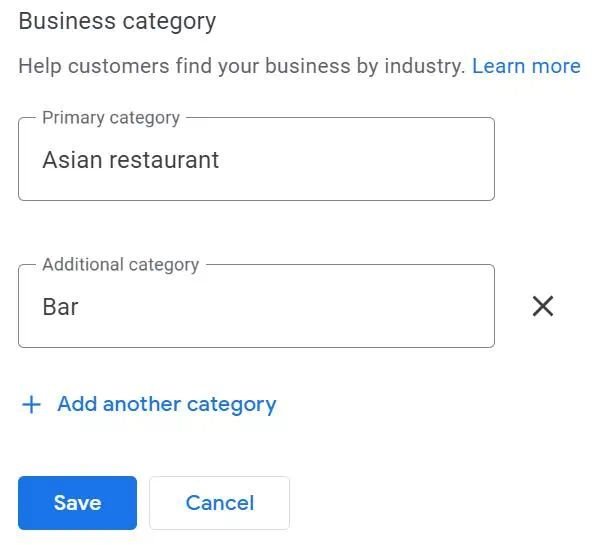
What to look for on screen
Choose your primary category first.
“Primary category” is your main business category. “Additional category” covers other activities. In Google's example, the restaurant is the primary category and the bar is an additional one.
2. Complete your key business details
Open “Edit profile” and review your details as a first-time customer would. Does the number work? Does the link open the right website? Is it clear when someone can visit?
- Name: use the name on your shopfront and other business materials. Do not add “best”, service lists or town names just for search visibility.
- Phone and website: enter a number you answer and the full link to your website. Test both on mobile.
- Opening hours: set regular hours and special hours for holidays and temporary exceptions. A closure post does not replace this update.
- Description: explain what you do, who you help and what you offer in a few sentences. Avoid repeated keywords and sales slogans.
- Attributes: select available details that are accurate, such as wheelchair access, Wi-Fi or outdoor seating. Options depend on your category and availability.
Example for a fictional carpentry business: “We make bespoke kitchens and fitted wardrobes in Osijek and the surrounding area. We visit to measure, agree on materials and carry out installation.” Readers understand the offer immediately. There is no need to promise “innovative, top-quality solutions”.
3. Set your location or service area correctly
- Customer-facing premises, such as a salon or shop: show the actual address and check the map pin.
- A business that visits customers, such as a mobile tradesperson who does not receive visitors: hide the address and state the service area.
- A hybrid business, where customers visit and you also travel or deliver: you may list both an address and service area if you meet Google's rules.
Edit this through “Edit profile” → “Location” → “Service area”. Google permits up to 20 areas, such as towns or postcodes. The guide says the overall area should generally be within about two hours' drive of the base.
If a carpenter regularly works in Osijek and nearby towns, list those places. Listing all of Croatia does not help customers if you do not travel there. Adding a town does not guarantee a top ranking there.
Do not create fictitious branches. A virtual office where you do not actually operate is not a valid substitute. Showing premises requires conditions such as genuine customer visits, staff during stated hours and permanent business signage.
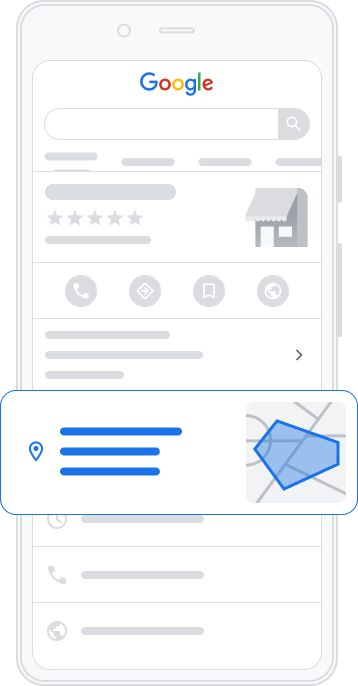
Location or service area
Help customers understand where you work.
The highlighted area shows where a business provides its services. If you visit customers, enter the towns or postcodes you actually cover. Hide any address where customers cannot visit you.
4. Add services, products and prices
“Car repair” is often not enough for a customer. They want to know whether you offer servicing, diagnostics or brake replacement. Write your service list using the language you would use on the phone.
If “Edit services” is available, add your real services with short descriptions and prices where appropriate. Explain what is included. If the price depends on scope, say so rather than inventing a fixed amount.
For products, use real names, photos and offer descriptions where available. A restaurant needs an up-to-date menu. Not every field is available for every activity and market; start with the options on your profile.
Review your latest customer enquiries. If the same question keeps coming up, such as whether installation is included, add the answer to the relevant service. Update the profile when the offer changes.
5. Add good photos and video
Start with the entrance and shopfront, interior, team, products or completed work. An entrance photo helps first-time visitors find you. Interior photos show what to expect.
Choose sharp, well-lit photos that reflect reality. A stock photo of a beautiful salon is unhelpful if yours looks different. Use before-and-after images only for your own real work, without misleading editing and with permission from identifiable people.
Open “Photos” in your profile and upload your images. A short video can show your space or how a product is made. Google's guidance allows videos up to 30 seconds, 75 MB and at least 720p resolution.
You do not need a professional shoot immediately. A few clear phone photos are a good start for a small business. Add new ones when the space changes or you finish work that shows your service well.
6. Use Google Posts
Google posts share current information on your profile. Open “Posts” or “Add update”, choose a type, write a short message and add a photo and useful link if available.
- Update: a new garage service, a completed carpentry project or holiday arrangements. Change opening hours in the profile details as well.
- Offer: a seasonal deal with clear dates, inclusions and terms. Readers should understand what they receive and when it ends.
- Event: a workshop, opening or open day. Include the date, time and how to register.
The 2026 Playbook recommends posting at least weekly. This is communication advice, not a confirmed ranking requirement. Keep a note of what is new, so each post offers more than another slogan.
Example of a useful update: “From Monday, we also offer vehicle air-conditioning servicing. Call to book.” A real photo and clear contact details give people a reason to take the next step.
7. Connect social media and contact options
If the social profiles field is available, use “Edit profile” to add direct links to your business Instagram, Facebook or other channels you actually use. Check that each link opens your profile, not the platform homepage.
Some verified profiles also offer WhatsApp or SMS contact. If available, open “Edit profile” → “Contact” → “Chat” and enter the number or WhatsApp link as instructed.
These features are not available for every profile and region. A missing field does not necessarily mean you have done something wrong. Keep phone and website details correct and test added contacts from another device.
Choose channels you can monitor. If messages go unanswered for days, a clear phone contact is more useful than another neglected option.
8. Google reviews: how to request them properly
Ask for honest feedback, without pressure
After a service or purchase, you can invite customers to describe their experience. Keep the message short and participation voluntary. Do not ask for five stars or dictate what to write.
Thank you for choosing us. If you would like to, you can share your experience in a Google review: [link]. Your feedback helps people who are getting to know us.
Prepare a link or Google's QR code
On a computer, open your profile, choose “Read reviews”, then “Get more reviews”. Copy the link or save the QR code using the image's right-click save option. Google currently says QR codes are generated in a desktop browser, not on mobile.
Send the link with a thank-you message after a service. Put the QR code on your counter or receipt. Before printing, scan it with your phone and check that it opens the right profile.
Respond as a person
Keep positive replies brief and acknowledge a detail. For example: “Thank you. We're pleased you're happy with the installation and agreed schedule.” The same copied reply to everyone feels impersonal.
Read negative reviews carefully. If you made a mistake, acknowledge it and offer a specific next step. Do not share private details or argue. For example: “We're sorry about the wait. Please call us so we can check the booking and agree on a solution.”
You can report reviews that breach Google's rules. Disagreeing with a rating is not grounds for removal.
Do not buy or reward reviews
Do not buy reviews or offer a discount, gift or other reward. Google prohibits such incentives even when you are not asking only for positive feedback.
Do not send the Google link only to happy customers while directing unhappy ones to a private form. Give customers with real experience the same invitation to share honest feedback. Fixing a recurring problem is more useful than hiding criticism.
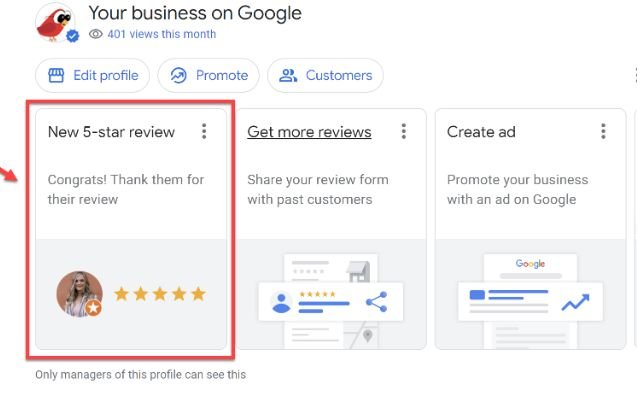
After a job or purchase
Make leaving a review easy.
Look for the review-sharing option in your profile manager. Google's example calls it “Get more reviews”. Copy the link and send it to a customer after a real experience.
9. Enable bookings if your business uses them
If customers book appointments, make it easy. Where your profile offers bookings or appointment links, add a page where people can actually choose a time or send a request.
Google's guide distinguishes your own booking link from an integration with a supported booking provider. Adding your own link does not automatically provide an integrated “Book” button. Availability depends on category, market and provider.
Test the whole journey on mobile, from your profile to appointment confirmation. A link to a general homepage leaves customers searching again. Check that the system does not offer appointments on closed days.
What affects visibility on Google Maps?
Google's official guidance identifies three main factors for local rankings. Put simply:
- Relevance: how closely your business matches the search. Complete, accurate details help Google understand your offer.
- Distance: how far you are from the person searching. The same query from two locations can therefore produce different results.
- Prominence: how well known the business is. Google mentions links from other websites, review volume and positive ratings among the factors.
A complete profile can help visibility, but does not guarantee first place or inclusion in prominent local results. Google says a better local ranking cannot be requested or bought.
Photos, posts and easy contact help customers decide. That does not mean every new photo or weekly post directly improves rankings. First, improve the information you control and check the contact journey works.
Common Google Business Profile mistakes
- Wrong category: customers get the wrong impression. Compare the category with your actual main activity.
- Outdated hours: customers arrive to find you closed. Enter special opening hours in advance.
- Incomplete or conflicting details: one phone number on your website, another on your profile. Review both after every change.
- Poor or old photos: the entrance, premises or current offer are unclear. Replace them with clear images of your actual business.
- Ignored reviews: questions and complaints go unanswered. Assign someone to check them regularly.
- Keywords in the name: a list of services replaces the real business name and may breach the rules.
- False locations or duplicates: customers are sent to the wrong place. Manage the genuine profile and request access if someone else owns it.
- Months without a check: old offers and broken links remain public. Put a short profile review in your calendar.
Google Business Profile checklist for 2026
Open your profile and work through this list. If anything is missing, start with contact details, location and opening hours.
- I have profile access and have completed verification.
- I use the real business name without added keywords.
- Primary and additional categories describe what I actually do.
- The phone number and website link work on mobile.
- The address and map pin are correct, or the address is hidden if I do not receive customers.
- Service areas match the places I actually visit.
- Regular and special opening hours are up to date.
- The description and available attributes provide clear, accurate information.
- Services, products and listed prices match the current offer.
- Photos show the real premises, team or work.
- Posts contain useful information and correct dates.
- The review link or QR code opens the right profile.
- I ask for honest reviews without rewards and respond to feedback.
- Social links, contact and bookings work where I use them.
Conclusion
First, sort out access and verification. Then check your details, location, opening hours and services. Add real photos and make contacting you easy. You can work through these tasks in order, without specialist tools.
Look at your profile through a customer's eyes from time to time. If they can understand what you offer and contact you without searching elsewhere, you have a sound foundation. Reflect any changes to your business on Google, too.
Google Business Profile: frequently asked questions
How can I add my business to Google Maps for free?
Sign in to Google, find an existing profile or add your business at business.google.com/add. Complete the verification offered. Check for an existing profile first to avoid duplicates.
Is Google Business Profile free?
Yes. Google does not charge for creating or managing a profile. Paid advertising and help from an external provider are separate services.
How long does it take to appear on Google Maps?
There is no single timeframe. Google says verification review can take up to five working days after completion, sometimes longer. This does not guarantee appearance for every query or a particular position.
Do I need physical premises?
You do not need customer-facing premises if you visit or deliver to customers and meet the other rules. Set a service area and hide any address where customers cannot visit. Online-only businesses are not eligible.
How do I change my opening hours on Google?
Sign in with the account managing the profile, open “Edit profile” and opening hours, make the change and save. Use special hours for holidays and other short exceptions.
How can I get more Google reviews?
After a genuine purchase or service, invite customers to leave honest feedback voluntarily. Share the profile's review link or QR code. Do not offer rewards or ask only satisfied customers.
Can I manage my Google Business Profile myself?
Yes. Once you have access and verification, you can edit details, add photos and posts, and respond to reviews. Set aside time to check it when your business changes.
Why is my business not first on Google Maps?
Rankings depend on relevance, distance and prominence. A complete profile does not guarantee first place. Results can vary with the searcher's location.
Would you like to set up or improve your Google Business Profile?
Local Craft Media helps small businesses and trades with Google Business Profile and local SEO and websites. We can review what you already have and agree on what needs updating.
Get in touchIf you already know what you need, prepare a project enquiry.
Sources
The main reference is Google's 2026 Playbook. The official instructions below were used to check rules and specific steps. Message examples and workflow suggestions are our own practical guidance.
- Google – GBP Best Practices Playbook 2026 (PDF)
- Google: Business Profile eligibility
- Google: adding or claiming a profile
- Google: business verification
- Google: guidelines for representing your business
- Google: editing your Business Profile
- Google: service areas
- Google: editing services
- Google: photos and video
- Google: posts, offers and events
- Google: social media links
- Google: WhatsApp and SMS contact
- Google: requesting and responding to reviews
- Google: review link and QR code
- Google Maps: fake and incentivised review policies
- Google: how local rankings work